
Trello is one of the simplest and easiest tools for managing tasks. Teams often choose it when they need to organize work quickly without a complicated setup, long onboarding, or a heavy project management system.
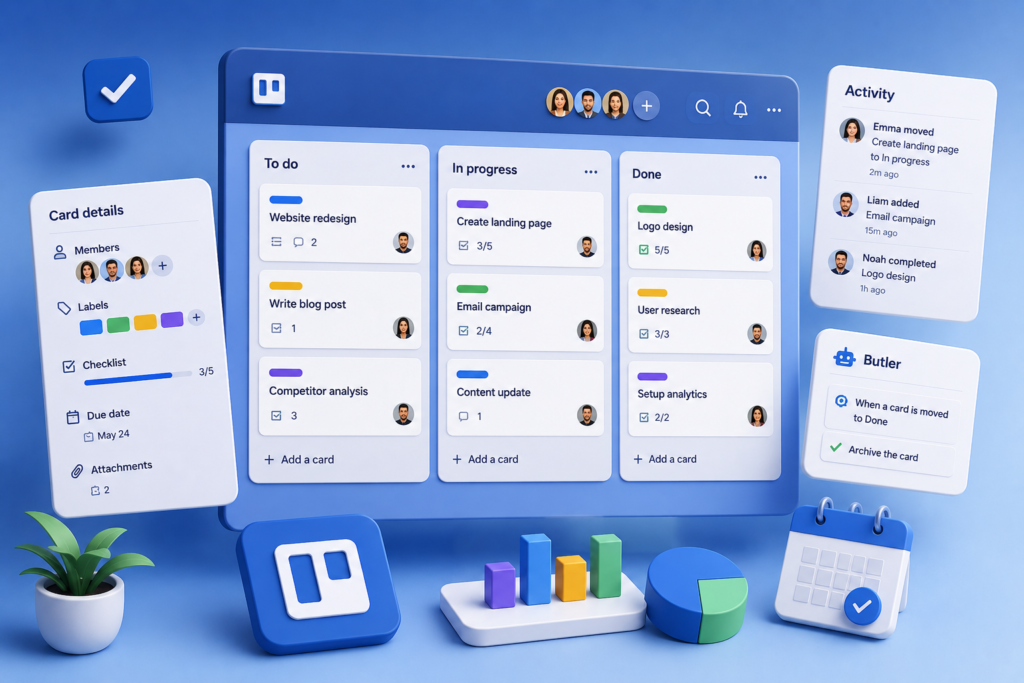
Trello is built around a very clear structure: a board, lists on the board, and cards inside the lists. That is often enough to manage a small project, content plan, marketing workflow, operational process, or personal tasks.
The main advantage of Trello is that it does not feel intimidating. Even someone who has never used project management tools before can usually understand the basic logic quickly. But this simplicity also has limits: for large teams, complex dependencies, and detailed reporting, Trello may feel too lightweight.
What is Trello
Trello is a task management tool based on kanban boards. Each board can represent a separate project, process, or work area. Inside the board, you create lists, and inside the lists, you create cards.
For example, a simple board may look like this:
- ideas
- in progress
- under review
- done
- published
A card can be moved between stages, and you can add a description, checklists, deadlines, members, comments, files, and labels. This helps the team see what has already been done, what is currently in progress, and what is still waiting.
How Trello works
Trello is built around a visual workflow. Instead of looking at a long list of tasks, the team sees a working board.
This is useful when you need to quickly understand:
- which tasks are active
- who is responsible for what
- where work has stopped
- which deadlines are coming up
- what has already been completed
- which tasks need attention
- For small teams, this format is often more convenient than complex spreadsheets or overloaded project management systems
Boards, lists, and cards
The main elements of Trello are boards, lists, and cards.
A board usually represents a project or work area. For example: “Content Plan”, “Website Launch”, “Marketing”, “Sales”, “Product Development”, or “Operations”.
Lists show the stages of the process. This can be the classic kanban structure: “To do”, “In progress”, “Done”. Or it can be a setup created for a specific team: “Ideas”, “In progress”, “Waiting for approval”, “Scheduled”, “Published”.
Cards are the actual tasks. Inside each card, you can keep all the information about the task, so people do not have to search for details in chats and different documents.
Checklists and deadlines
Trello is convenient for checklists. If a task has several steps, you can write them directly inside the card.
This is useful for repeated processes:
- preparing an article
- launching an email campaign
- publishing a post
- preparing a presentation
- checking a landing page
- processing a client request
- You can also set deadlines on cards. This helps the team see which tasks need to be finished soon and which ones are already overdue
Members and comments
In Trello, you can assign members to cards. This immediately shows who is responsible for the task.
In comments, you can discuss details, leave updates, attach files, and mention colleagues. For small teams, this helps keep less information scattered across messengers.
The important thing is that the discussion stays next to the task. If you need to return to a question a week later, you do not have to search through chat history - everything is in the card.
Labels and filters
Labels help separate tasks by type, priority, topic, or team. For example:
- urgent
- design
- copy
- development
- client
- finance
- publishing
- bug
- When there are many tasks on the board, labels and filters help you find the right cards faster and avoid getting lost
Automation in Trello
Trello has automation through Butler. It lets you set up simple rules.
For example:
- move a card to another list after a checklist is completed
- add a member when a certain label is selected
- create a recurring task
- set a deadline automatically
- send a notification when a status changes
- This is not a replacement for complex workflow systems, but for basic processes automation can save time and remove some manual work
Power-Ups and integrations
Trello supports Power-Ups - additional features and integrations. With them, you can connect calendars, Google Drive, Slack, Jira, GitHub, forms, reports, and other tools.
This expands what Trello can do. For example, you can view tasks in a calendar, attach documents from Google Drive, or connect Trello with work chats.
But it is important not to overload the board. If you connect too many add-ons, Trello can lose its main advantage - simplicity.
Who Trello is good for
Trello is a good fit for teams that need a simple and visual tool to organize work.
It can be useful for:
- marketing teams
- editorial teams
- content teams
- small businesses
- freelancers
- agencies
- operations teams
- startups
- teams without a dedicated project manager
- Trello works especially well when the process can be divided into clear stages and tasks move from left to right
Where Trello works especially well
Trello is convenient for tasks where visual clarity matters. For example, when a team wants to quickly see what is happening in a project without complex reports and settings.
Good use cases for Trello include:
- content calendars
- publishing plans
- small project management
- onboarding new employees
- a simple CRM
- marketing task control
- website work
- idea lists
- personal productivity
- For these tasks, Trello is often enough
What we like about Trello
Trello has several strong points:
- very simple interface
- quick start
- clear kanban logic
- convenient task cards
- checklists and deadlines
- members and comments
- labels and filters
- basic automation
- integrations through Power-Ups
The main benefit is that a team can start working almost immediately. You do not need to spend a long time setting up the system, training every user, or building a complicated structure.
What to consider
Trello is not always suitable for complex processes. If a project becomes multi-level, with dependencies, detailed reporting, workload planning, budgets, and several connected teams, Trello may be too simple.
Before choosing it, check:
- how many tasks will be on the board
- how many people will work in the system
- whether you need dependencies between tasks
- whether management needs reports
- whether you need workload planning
- whether basic automation is enough
- whether it is convenient to manage several projects at once
If the team quickly outgrows a simple board, it is worth looking at Asana, ClickUp, Jira, Monday.com, or other more powerful project management tools.
Trello for marketing and content
For marketing and content work, Trello can be very convenient. For example, you can create a board for articles, posts, newsletters, or advertising campaigns.
A card can include:
- the topic of the material
- the responsible person
- deadline
- preparation checklist
- link to the document
- approval status
- comments
- publication date
This format is easy to understand for an editor, designer, and marketer. Everyone can see what stage the material is in and what still needs to be done.
Trello for small business
For a small business, Trello can be a simple way to bring order to tasks. Instead of chaos in chats and notes, the team gets a shared board where it is clear who is doing what.
This is useful when the team is small and does not want to implement a complex system right away. Trello can be used for requests, internal tasks, client work, project launches, and weekly planning.
The main thing is not to try to build something too complex inside Trello. Its strength is simplicity.
Trello or Notion
Trello and Notion are often used for similar tasks, but they work differently.
Trello is better for visually moving tasks through stages. If you need a simple board like “to do - in progress - done”, Trello is convenient.
Notion is stronger for documents, knowledge bases, text, tables, and flexible internal systems. It is often chosen when a team needs to store a lot of information, not only move tasks around.
Some teams use both tools: Trello for tasks, Notion for documentation and knowledge base.
Trello or Asana
Asana is usually better for more structured project management: tasks, subtasks, dependencies, projects, deadlines, teams, and reporting.
Trello is simpler and lighter. It is easier to launch when the team needs a clear board without too much complexity.
If your process is small and visual clarity is important, Trello may be enough. If you manage many projects and need reporting and dependency control, Asana may be more practical.
Final thoughts
Trello is a good tool for teams that need a simple system for managing tasks and projects. It is especially useful when the process can be shown through a board, lists, and cards.
The service is quick to launch, easy to explain to the team, and helps organize work without complicated training.
But Trello should not be treated as a universal solution for every project management need. For large teams, complex processes, and deep reporting, it is better to compare it with more powerful tools in advance.
If you need a lightweight, visual, and clear way to organize tasks, Trello is definitely worth considering.